
6.7 KiB
title, source, author, published, created, description, tags
| title | source | author | published | created | description | tags | ||
|---|---|---|---|---|---|---|---|---|
| WetJet's Easy All-In-One ds3617 tutorial for esxi 6.7 | https://xpenology.com/forum/topic/31105-wetjets-easy-all-in-one-ds3617-tutorial-for-esxi-67/ |
|
2020-06-29 | 2025-04-03 | I got tired of searching tutorials, just to find 20+ pages of people having problems with no real bullseye solution, so I decided to make a tutorial with a single download, to provide everything you need in a deployable ovf format for esxi 6.7. Credit to https://xpenology.com/forum/topic/13019-tu... |
|

웻젯43
게시됨
튜토리얼을 검색하는 데 지쳐서, 진짜 해결책이 없는 문제를 가진 사람들이 20페이지 이상 있는 걸 발견했기 때문에, esxi 6.7에 배포 가능한 ovf 형식으로 필요한 모든 것을 제공하기 위해 한 번의 다운로드로 튜토리얼을 만들기로 했습니다. 출처는 https://xpenology.com/forum/topic/13019-tuto-configs-toute-pr%C3%AAte-pour-vmware/입니다.
그 페이지가 프랑스어로 되어 있고 저는 프랑스어를 할 줄 모르지만, 다른 튜토리얼보다 지침을 따르기가 더 쉬웠습니다.
이것은 따라하기 매우 쉬운 튜토리얼입니다. 단계별로 따라하면 완벽하게 작동하는 xpenology 서버를 갖게 됩니다. 이것은 업그레이드 튜토리얼이 아니며, mac 주소 등을 사용자 정의하는 방법은 포함하지 않습니다. esxi 웹 클라이언트를 사용하여 ovf를 배포하여 esxi 6.7에 DS6317xs 이미지를 설치하는 간단한 튜토리얼입니다. 최소한의 설정 조정이 있습니다. CPU, 메모리를 조정하고, 데이터에 대한 두 번째 볼륨을 추가하고, 몇 가지 sata 설정을 조정하고,.pat 파일을 설치하면 끝입니다.
1. 파일을 다운로드하고 압축을 풉니다. 여기에는 esxi에 ovf를 배포하는 데 필요한 DSM.ova 및 synoboot.vmdk 파일과 DSM_DS3617xs_23739.pat 파일이 포함되어 있습니다.
xpenology-ds3617xs-all-in-one.zip
2. ESXi 웹 클라이언트를 엽니다.
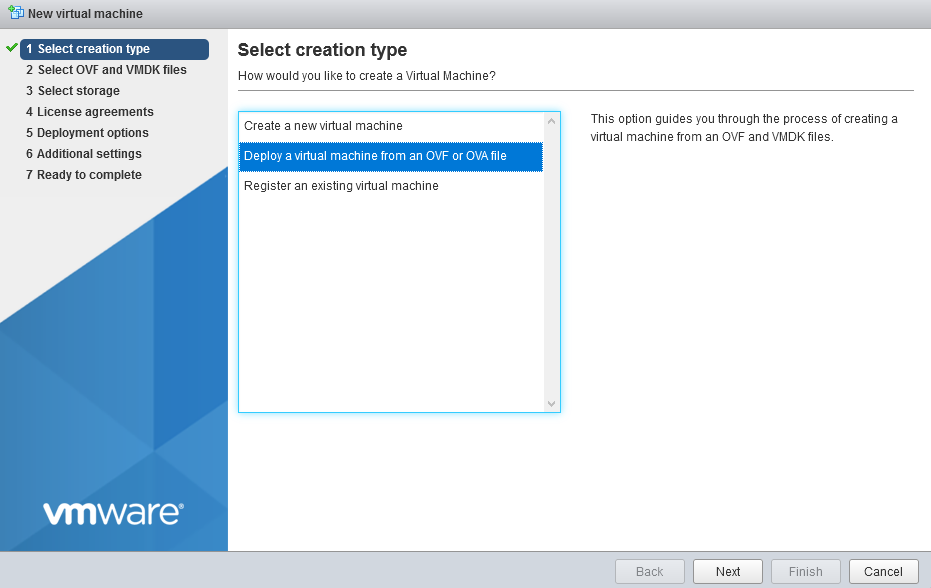
3. 새 가상 머신을 생성하고 " OVF 또는 OVA 파일에서 가상 머신 배포 " 를 선택합니다.
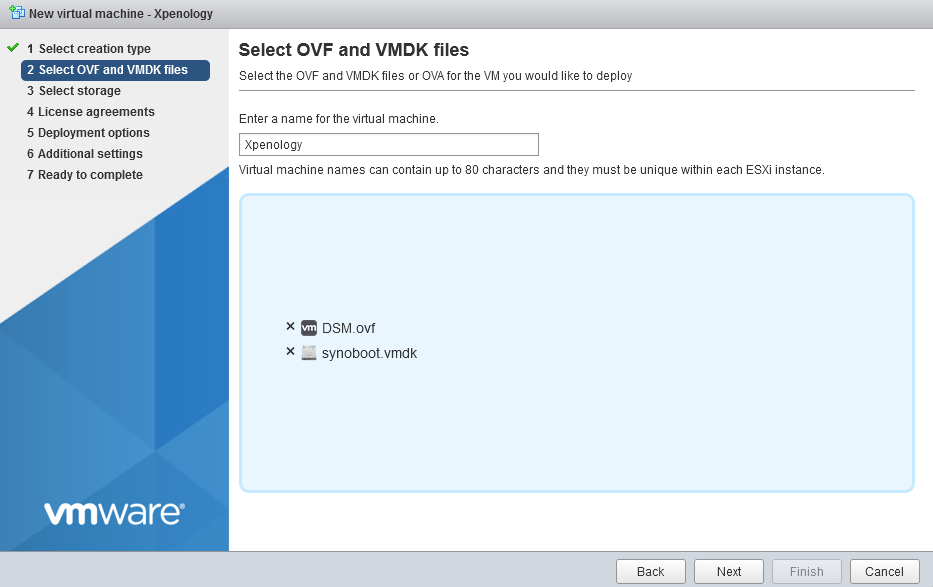
4. DSM.ovf 및 synoboot.vmdk 파일을 모두 추가한 후 다음을 클릭합니다.
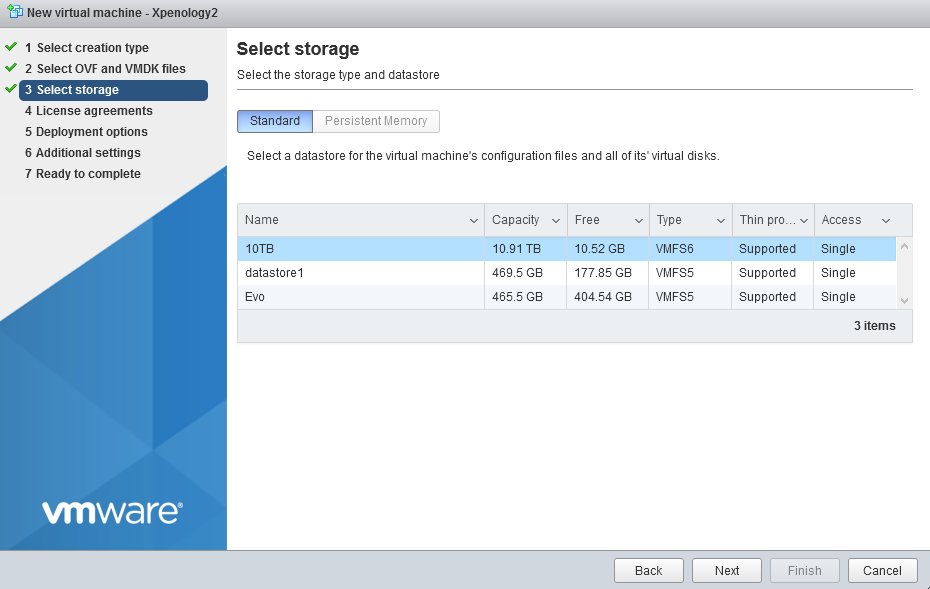
5. 새 가상 머신을 설치할 저장 위치를 선택합니다. 이것은 제 설정이며, 여러분의 설정은 다를 것입니다. 충분한 여유 공간이 있는 한 어디든 상관없습니다. 저는.ovf 파일을 Evo 드라이브로 가져왔고, 모든 데이터를 위한 두 번째 드라이브를 10TB 드라이브에 추가했습니다. 모든 것을 한 곳에 두거나, 두 개의 다른 위치에 둘 수 있습니다. 여러분의 선택입니다. 최종 결과는 동일합니다. 작동하는 xpenology 설치.
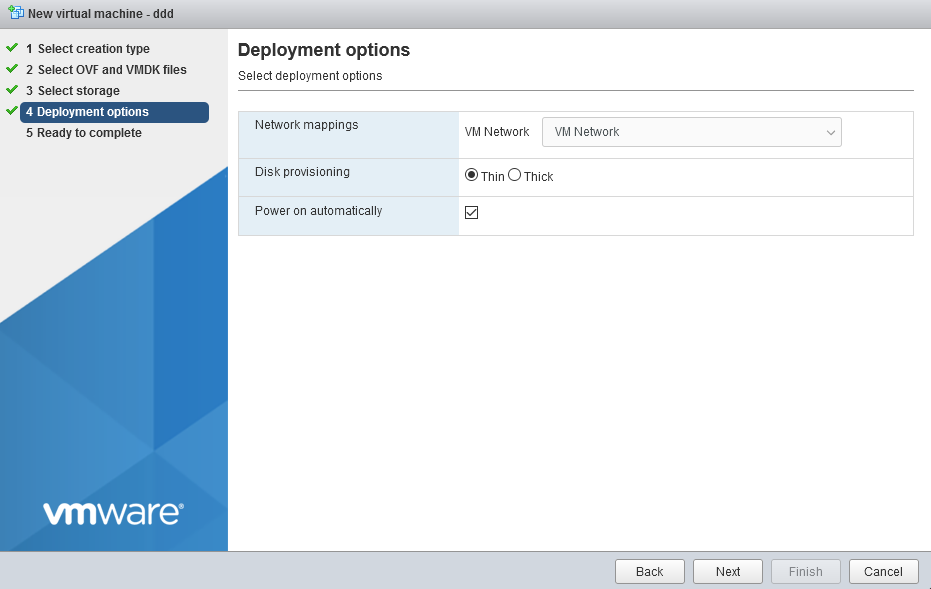
6. 사용하고 싶은 VM 네트워크를 선택하세요. 저는 esxi 서버에서 하나의 네트워크만 실행하고 있기 때문에 기본값으로 두었습니다. 귀하의 설정은 다를 수 있습니다. 그에 따라 선택하세요. 다른 모든 설정은 기본값으로 두세요.
7. Finish를 클릭 하고.ovf 파일을 배포합니다. 시스템에 따라 몇 초/분이 걸릴 수 있습니다.
8. 서버를 켜기 전에 몇 가지 사항을 변경해야 합니다!.
- I chose 4 CPU cores, and 4 GB of ram. That's enough for my needs. You can chose 8 cpu cores and 8 gb of ram if you'd like.
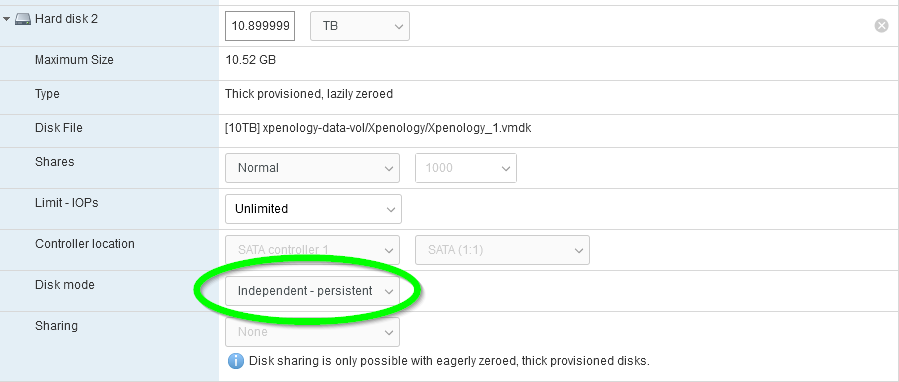
- Add your 2nd hard disk. (I assume you know how to add a hard drive in esxi) --CRITICAL-- You MUST chose Disk Mode: Independent - persistent.
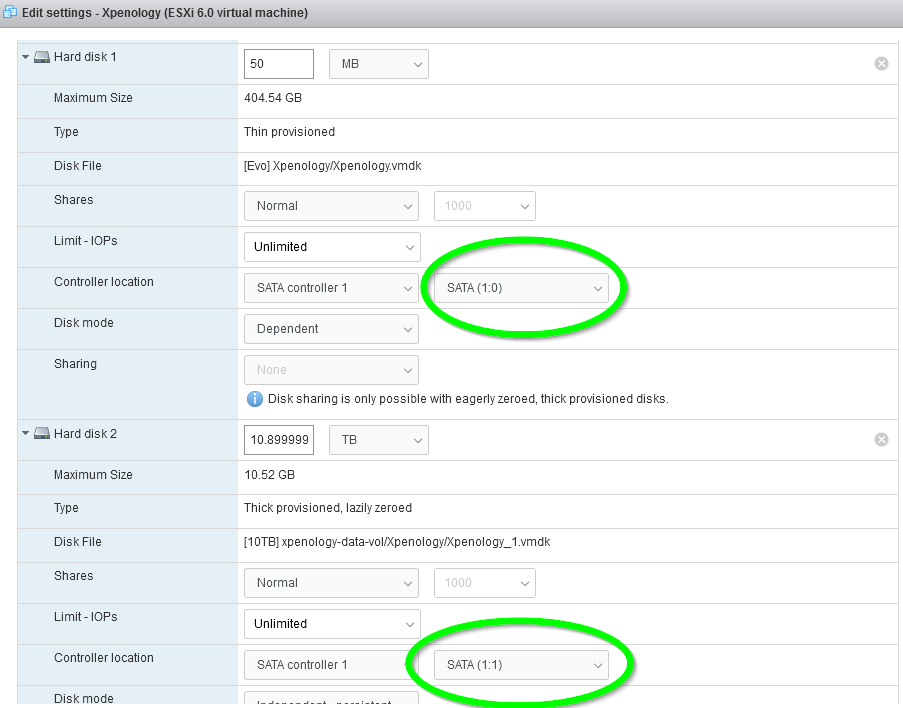
- The second critical thing you must do, is change your Hard disk 1 and Hard disk 2's controller location to SATA (1:0) and SATA (1:1). If you don't do this, you'll get an error that the system can't find any drives to install to when trying to install the.pat file.
- You can remove the USB controller, and the CD Rom. You won't need them.
Fire up the virtual, then using a web browser, visit http://find.synology.com. Upload you.pat file, set an IP and an admin password.
YOU'RE DONE!
-
 1
1 -
 1
1